长沙欣慰科技Elunvi
English

Elunvi Motion

Bring the character to life. Keep refining the frames.

AI Character Animation and Frame Editing

Organize your references and actions, generate with model-supported inputs, then adjust frame order and timing before moving into the next stage of production.

Windows x64 download available; macOS not yet available

Contact
Elunvi Motion | AI Character Animation and Frame Editing
Elunvi Motion
01

From character reference to animation assets

Use character and motion references with a supported model, convert a selected video into frames, adjust order, frame rate and timing, then export a PNG sequence with an optional sprite sheet.

  1. Start with the character and action

    Keep reference material with the relevant project, character and action. Follow the selected model's input requirements when generating.

  2. Review motion and refine timing

    Inspect the frame sequence, rearrange frames and adjust individual durations while checking playback.

  3. Take the result further

    Export PNG sequences and an optional sprite sheet with frame metadata. Check dimensions, ordering and playback settings when using the files in your project.

Who it is for Independent game developers, small game teams and character animators.

02

Choosing Motion

Can frame editing fix a distorted generated animation?

Reviewing, removing and reordering frames, and adjusting timing, can help refine the motion. Frame editing does not automatically correct every generation defect. Check character appearance, transitions and loop boundaries.

Do I need a motion reference video?

Not always. Supported combinations of images, text and reference videos depend on the selected model. Follow the input guidance in the application.

Can I export a transparent animation directly into Unity or Godot?

A transparent canvas does not automatically remove the source video's background. PNG sequences and sprite sheets are output formats. Check the background, dimensions, frame ordering and playback settings separately in your target engine.

Explore the animation workflow
Can I start without a finished character image?

You can import an existing image or use AI image generation in Motion's asset selection flow. For broader character design, outfits and visual references, explore Canvas.

Explore Elunvi Canvas
Which computers are supported, and where can I find pricing?

A Windows x64 installer is available. A macOS installer is not currently offered. See the application for current subscription and model usage charges.

Elunvi Motion

Next step

Developed by Shineway Technology · 长沙欣慰科技有限责任公司

Contact

Elunvi site

ELUNVI / Elunvi Motion

Elunvi Motion · Core capabilities

01 / 03

Define the role first, then develop the actions

After opening the character workspace on the real machine, you can see the main reference picture and supplementary reference entrance on the left, and the action list of the character on the right. A character can accumulate different actions over time.
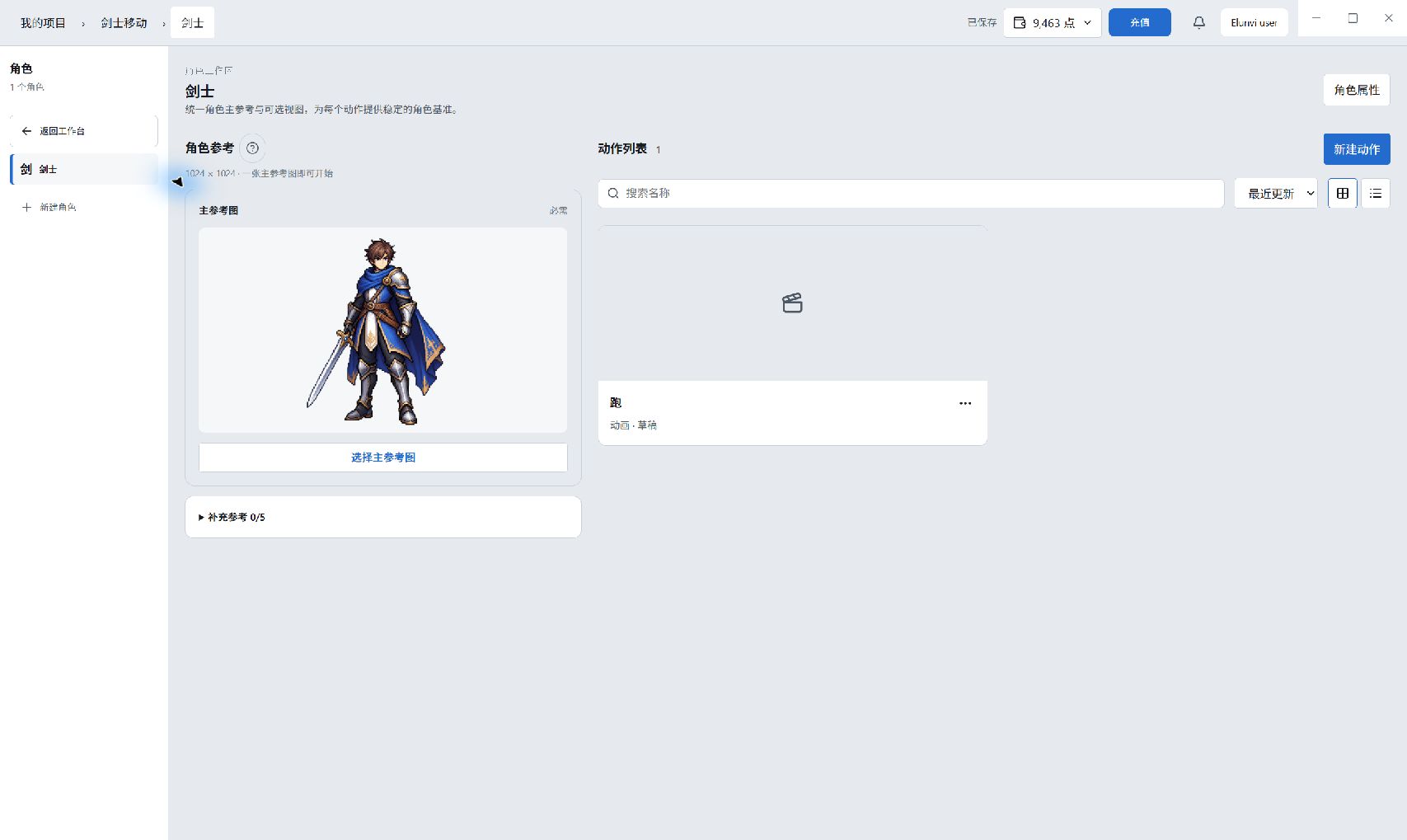
Actual running character reference and action list of Elunvi Motion
02 / 03

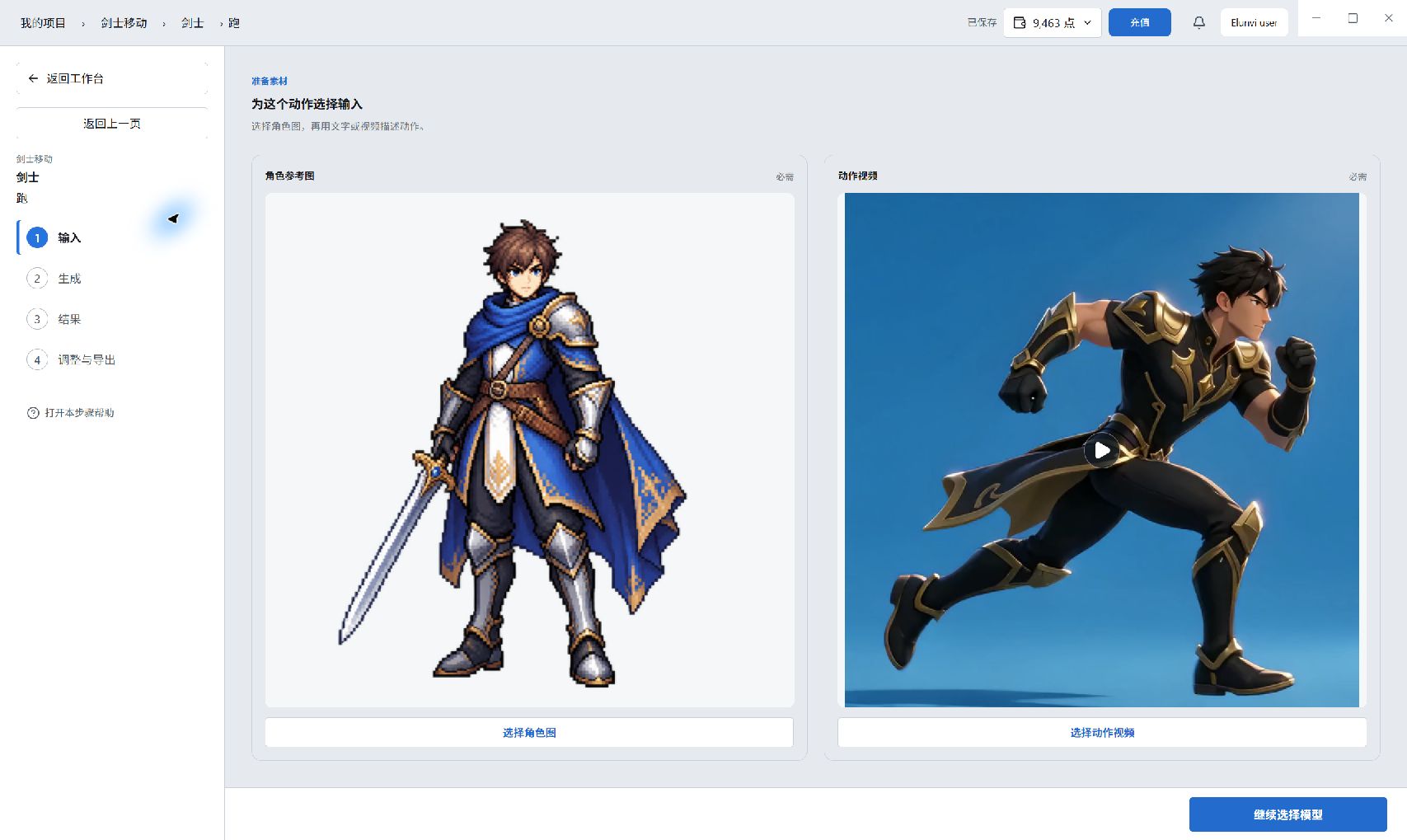
Check character images side by side with action videos

The action input page displays both character reference pictures and movement videos. Before starting processing, you can confirm whether the character's appearance, posture source and video match, to avoid bringing wrong materials to subsequent sequences.

Character pictures and action video input page of Elunvi Motion in actual operation
03 / 03

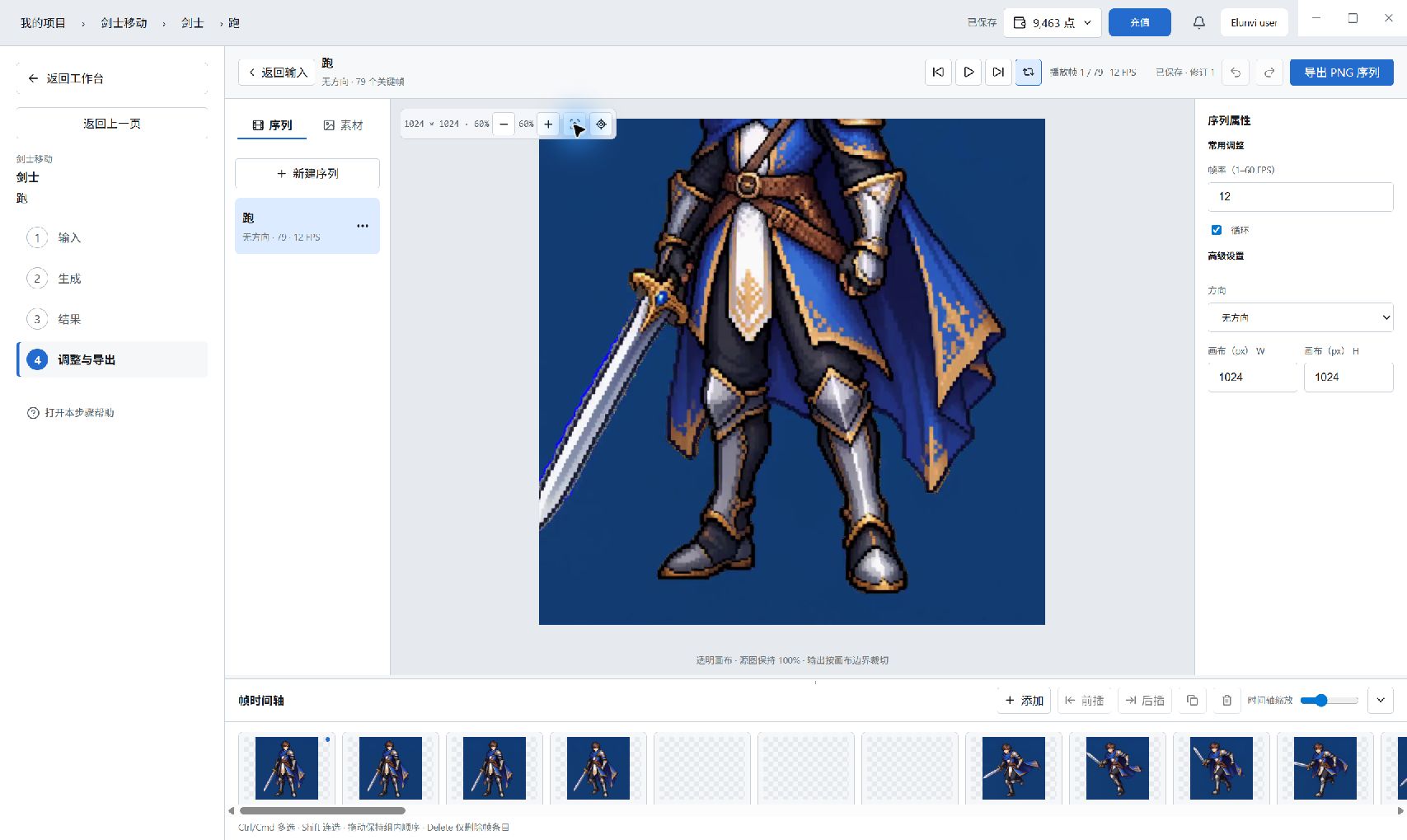
Put the action into the timeline to take a closer look

The Action Sequence Editor juxtaposes canvases, frame thumbnails, and properties. The live example contains 79 frames; you can play and inspect the frame sequence, adjust frame rate, looping and canvas settings, and export the sequence as a PNG.

Elunvi Motion action sequence editor, canvas and 79-frame timeline

AI SUPPORT

AI support

The AI capabilities in Elunvi products are supported through the following AI relay services. Visit each site to learn more.